
Set it up
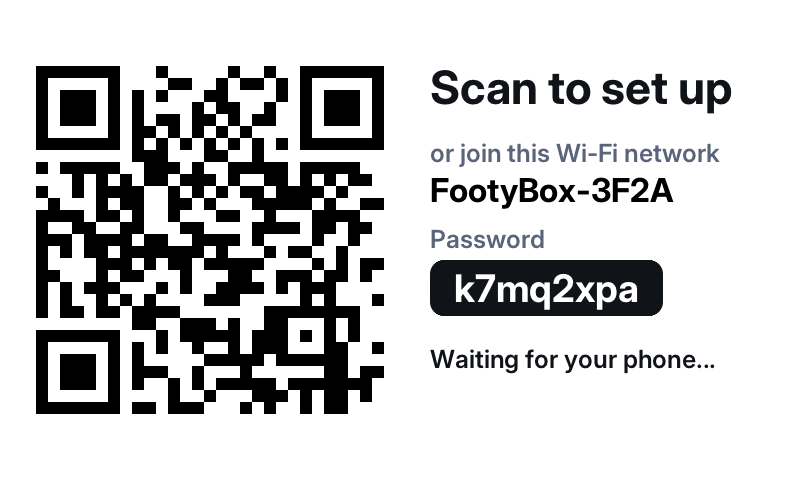
- Plug it in. Use the cable in the box and any USB phone charger. The FootyBox logo appears, then the setup screen.
- Scan the QR code on the screen with your phone's camera. It joins the box's own Wi-Fi network, called
FootyBox-and four letters or numbers, and the setup page opens. - Choose your home Wi-Fi network and type its password.
- Choose your team. Your club's colours are filled in for you; change them if you prefer. Then save.
The box joins your Wi-Fi, finds your team's next match and shows it. That's it.
http://example.com, and the setup page appears instead.Choose your team later
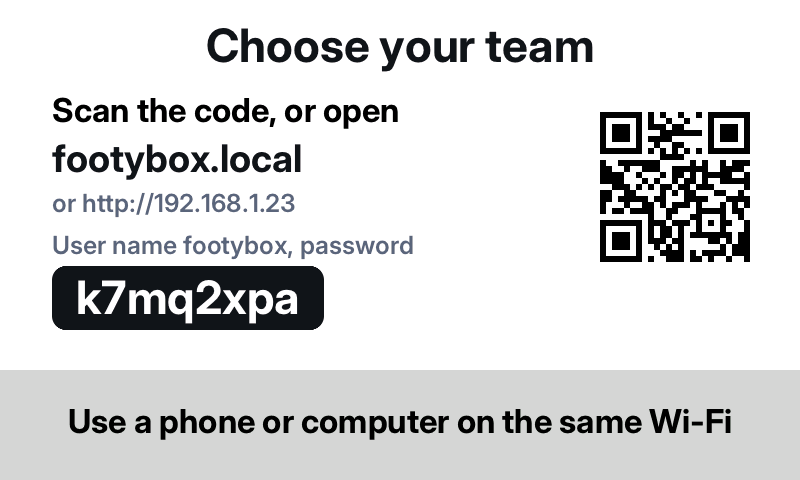
If you only set up Wi-Fi the first time, the box shows a Choose your team screen. On a phone or computer on the same Wi-Fi, go to http://footybox.local, or scan the QR code on that screen, which opens the same page by the box's address.
Teams in the list are just a start: search by name to find any club our data covers.
Change your settings
On your home Wi-Fi, open http://footybox.local in a browser. When it asks you to sign in, the user name is footybox and the password is your box's own password (the one shown on its setup screen). From there you can change your team, its colours and the Wi-Fi network.
Some Android phones don't open .local addresses. Use the box's IP address instead: it's shown on the Choose your team screen, and in your router's list of devices.
Start setup again
Moved house, or changed your Wi-Fi password? Switch the box off and on three times in a row, each time within ten seconds of switching it on. The setup screen appears. Your old settings are kept until you save new ones.
If the box can't join its saved Wi-Fi for 30 seconds, for example because the password changed, it opens setup by itself and tells you what went wrong.
Watch another game
- Tap anywhere on the screen to see today's matches: Your team, Live now, Later today and Finished.
- Swipe up or down to scroll, and tap a match to follow it.
- To go back, tap the screen and choose Back at the top of the list. The box also switches back on its own two minutes before your team kicks off.
If something isn’t right
The screen stays dark
Try another USB charger and cable. Very old chargers and some laptop ports don't supply enough power. The box needs 5 V and up to 0.5 A.
My Wi-Fi network isn't in the list
FootyBox uses 2.4 GHz Wi-Fi. If your router only broadcasts 5 GHz, turn on its 2.4 GHz network in the router's settings. Networks where you sign in through a web page, like some hotel or office Wi-Fi, won't work.
It says “Couldn't join”
The Wi-Fi password was probably mistyped. Scan the code again and re-enter it. Passwords are case-sensitive.
The score seems behind
During a match the box checks for news every 5 to 15 seconds, and the clock runs between checks. TV and streaming pictures are often delayed too, so the box and the telly won't always agree to the second.
A scorer's name is missing
Occasionally the score updates a few seconds before the details of the goal come through. The name appears in the list once they do.
Still stuck?
Email contactfootybox@gmail.com with what the screen shows (a photo helps) and we'll help.